Why Is Checking In for a Trip.com Flight So Confusing?
You found a fantastic flight deal on Trip.com and booked your dream vacation. Now, the 24-hour check-in window has opened, and a sense of dread washes over you. You visit the airline’s website, enter your details, and are met with a frustrating error: “Booking Not Found.”
This experience is incredibly common and leads to unnecessary stress for travelers. The confusion stems from a simple fact: Trip.com is a third-party agent, not the airline itself. This creates an extra layer between you and the carrier, often resulting in communication gaps and data mismatches.
Common problems include failed online check-ins, an inability to add baggage or select seats, and general confusion over which confirmation number to use. Understanding the root of this issue is the first step toward a smooth, panic-free check-in experience.
The Golden Ticket: Finding Your Airline Confirmation Number
Here is the single most important piece of information you need to understand: your Trip.com booking number is NOT your airline confirmation number. The airline’s system does not recognize the number Trip.com gives you. You must find the specific code the airline uses.
This code is often called the “Airline Confirmation,” “PNR (Passenger Name Record),” or “Booking Reference.” Finding it is simple once you know where to look. Log in to your Trip.com account, navigate to “My Bookings,” and select your flight. Within your itinerary details, you will find a separate reference number specifically for the airline.
This number is your key to unlocking the check-in process directly with the airline. Without it, you will not be able to manage your booking, select seats, or check in online. Always locate this number first.
Your Step-by-Step Guide to Trip.com Online Check-In
Once you have the correct airline confirmation number, the online check-in process becomes straightforward. Checking in online saves you valuable time at the airport and often gives you a better choice of available seats.
Step 1: Gather Your Documents
Before you begin, have everything you need ready. This includes the full names of all passengers as they appear on their passports, passport details (number, expiration date), and, most importantly, the airline confirmation number you located in your Trip.com itinerary.
Step 2: Go Directly to the Airline’s Website
This is a critical step that trips up many travelers. Do not attempt to check in through the Trip.com website or app. Open a new browser window and go directly to the official website of the airline operating your flight (e.g., United.com, BritishAirways.com, etc.).
Find the “Check-In” section on the airline’s homepage. You will be prompted to enter your last name and your booking reference. Use the specific airline confirmation number from your Trip.com details here.
Step 3: Complete the Check-In Process
After the airline retrieves your booking, you will be guided through their standard check-in flow. This is where you confirm passenger details, accept terms regarding hazardous materials, and have the opportunity to add extras like checked baggage or select your seats.
Be aware that some deeply discounted fares booked through third-party sites may have restrictions. The trust and transparency of the booking platform are key, which is why travelers often ask questions like is Skywithclass legit when evaluating different services. If you cannot select a seat or add a bag, you may need to do so at the airport.
Step 4: Receive Your Boarding Pass
Once check-in is complete, you will be issued your boarding pass. Most airlines offer several options: you can receive a mobile boarding pass on your phone, have a PDF sent to your email to print at home, or choose to print it at an airport kiosk.
When Online Check-In Fails: The Airport Check-In Alternative
Sometimes, despite your best efforts, online check-in just won’t work. This can be due to a technical glitch, a document verification requirement, or a system sync issue between Trip.com and the airline. Do not panic; you can always check in at the airport.
If you have to check in at the airport, the most important thing to do is arrive earlier than you normally would. Plan to get to the airport at least two hours before a domestic flight and three hours before an international one to give yourself a comfortable buffer.
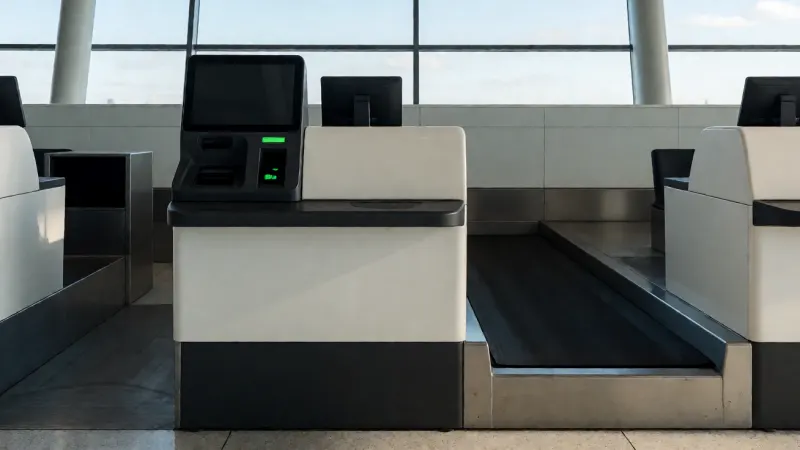
Using an Airport Kiosk
The self-service kiosks are your fastest option. You can typically start the process by either scanning your passport or manually entering your airline confirmation number. The kiosk will then walk you through the steps to confirm your flight, check baggage, and print your boarding pass.
Speaking to an Agent
If the kiosk fails or you need extra assistance, head to your airline’s check-in counter. Have your passport and airline confirmation number ready to give to the agent. They can resolve most issues, add bags to your booking, and print your boarding passes for you.
Once you have your boarding pass and have dropped off your bags, you can proceed through security. If you find yourself in a large, confusing airport and are short on time, remember that there are services available to help you get to your gate faster, like navigating the terminal with an airport golf cart.
Online vs. Airport Check-In: A Quick Comparison
Choosing between online and airport check-in depends on your travel style and needs. Understanding the advantages and disadvantages of each method can help you decide which is best for your situation when flying on a Trip.com ticket.
| Feature | Online Check-In | Airport Check-In |
|---|---|---|
| Convenience | High – Can be done from home or on the go 24 hours before your flight. | Low – Requires being physically present at the airport. |
| Time Savings | Significant – Allows you to skip long check-in counter lines. | Can be very time-consuming, especially during peak travel periods. |
| Seat Selection | Better choice of available seats the earlier you check in. | Limited options, often resulting in middle seats or separated parties. |
| Baggage | Can add and pay for bags online, though sometimes restricted on OTA fares. | Guaranteed ability to add and pay for baggage with an agent. |
| Problem Resolution | Limited – Technical issues can be difficult to solve on your own. | High – Airline agents can directly resolve complex issues. |
| Last-Minute Changes | Difficult to manage after a boarding pass has been issued. | Agents have more flexibility to handle last-minute requests. |
Solving Common Trip.com Check-In Problems
Navigating the check-in process can sometimes feel like a puzzle. Here are solutions to the most common issues travelers face with Trip.com bookings, helping you resolve them quickly and confidently.
Problem: “Booking Not Found” on the Airline Website
This is the number one issue, and the solution is almost always the same. You are using the Trip.com order number instead of the airline confirmation number. Go back to your Trip.com booking details, find the correct airline-specific code, and try again.
In rare cases, there might be a delay of a few hours between when you book on Trip.com and when the information syncs with the airline’s system. If you just booked, wait a little while before trying to access your booking on the airline’s site.
Problem: Can’t Add Baggage or Select a Seat
If the airline’s website won’t let you modify your booking, it’s likely due to the fare class purchased by Trip.com. Some of the cheapest “basic economy” style tickets restrict pre-flight modifications. In this case, your only option is to manage baggage and seating at the airport check-in counter.
Problem: Check-In for Codeshare or Multi-Airline Flights
Your itinerary might show a flight sold by one airline but operated by another. This is known as a codeshare. The unbreakable rule is to always check in with the operating carrier—the airline whose name is on the actual airplane you will be flying in.
For complex international tickets with multiple airlines, this is crucial. An itinerary that involves a Lufthansa vs Delta connection requires you to check in for each segment with the respective operating airline. Your Trip.com itinerary should specify which carrier operates each leg of your journey.
Pro Tips for a Flawless Trip.com Check-In Experience
Beyond the basics, a few expert strategies can make your travel day significantly smoother. Adopting these habits will help you avoid common pitfalls and travel like a seasoned pro.
Check In as Early as Possible. Most airlines open check-in 24 hours before departure. Set an alarm and check in the moment it opens to get the best pick of remaining seats and resolve any potential issues well ahead of time.
Use the Airline’s Official App. Download the mobile app for the airline you’re flying. Checking in is often easier on the app, and you’ll have your mobile boarding pass readily accessible. The app will also provide real-time updates on gate changes or delays.
Double-Check Your Name and Documents. Ensure the name on your booking confirmation exactly matches your passport. Any discrepancies, even a missing middle name, can cause major problems. Confirm your passport has at least six months of validity if traveling internationally.
Understand Your Fare Rules Before You Book. When you see a great deal on Trip.com, take a moment to check the fare rules. Understanding the restrictions on baggage, seat selection, and changes upfront can prevent surprises during check-in.
The Final Word: Is Booking with Trip.com Worth It?
Trip.com can offer access to excellent fares and a wide range of flight options. The potential for a slightly more complicated check-in process should not deter you from saving money. The entire system is manageable once you know how it works.
The key is empowerment through knowledge. By understanding that you must use the specific airline confirmation number and interact directly with the airline for check-in, you bypass all the common frustrations.
So, book that deal with confidence. When check-in time arrives, you’ll be prepared, in control, and ready to start your journey without any unnecessary stress. Your trip should be about the destination, not about wrestling with a website.